
Best Authenticator Apps in 2026: Protect Your Accounts With 2FA
Compare the best free authenticator apps for 2026, including Ente Auth, 2FAS, Google and Microsoft Authenticator, plus a five-minute setup guide and passkey tips.
Anúncios
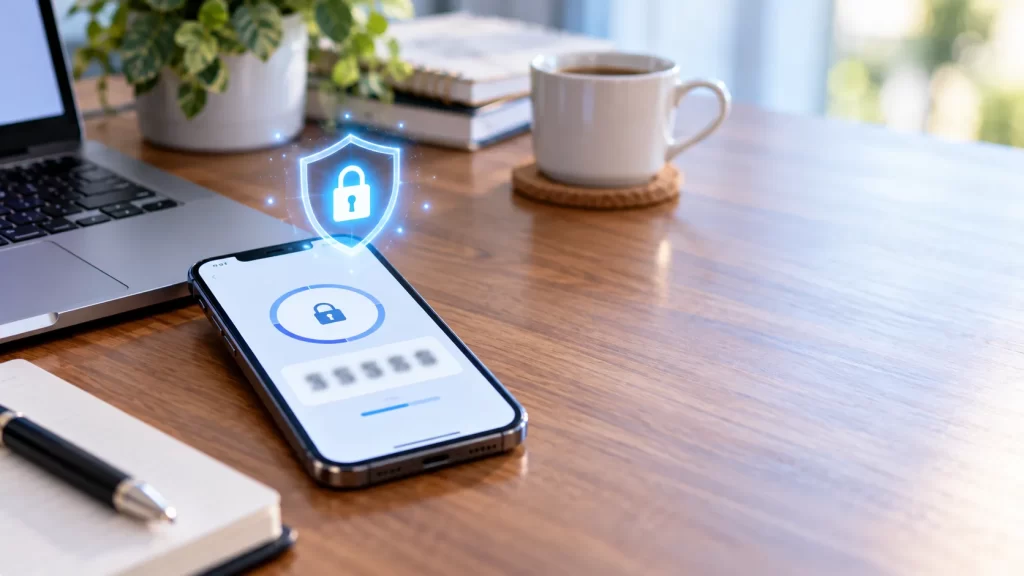
A strong password is no longer enough to protect your email, bank or social media accounts. Passwords leak in data breaches, get guessed, or get handed over to convincing phishing pages. Two-factor authentication (2FA) adds a second check, so a stolen password alone cannot unlock your account.
The most practical way to use 2FA is an authenticator app: a free app on your phone that generates a fresh six-digit code every 30 seconds. This guide compares the best authenticator apps in 2026, explains how they differ, and shows how to set one up safely. Everything here applies equally in the US, UK, Canada and Australia.
Anúncios
Why an authenticator app beats SMS codes
Many services offer to text you a code instead. That is better than nothing, but text messages have weaknesses:
- SIM-swap fraud: criminals can trick a phone company into moving your number to their SIM card and receive your codes.
- Phishing: codes sent by SMS are easy for scammers to talk you into reading out.
- Coverage: codes may not arrive when you are travelling or have no signal.
Authenticator apps generate codes on your device, work offline, and are not tied to your phone number. For your most important accounts, they are a clear step up.
Anúncios
Best authenticator apps in 2026
Ente Auth: best overall for most people
Ente Auth is free, open-source and available on Android, iPhone, Windows, Mac, Linux and the web. Your codes are backed up with end-to-end encryption, so you can recover them on a new phone, and the app undergoes independent security audits (Techlicious).
- Best for: anyone who wants secure backups and access on several devices.
- Consider: backups depend on Ente’s cloud service, which is funded by the company’s separate photo storage product.
2FAS: best free option without a new account
2FAS is free and open-source, with apps for iPhone and Android and a browser extension that can fill codes on your computer. Instead of running its own cloud, it backs up your encrypted codes to storage you already use, such as iCloud or Google Drive.
- Best for: people who want privacy and do not want to create another account.
Google Authenticator: best for simplicity
Google Authenticator is free, very simple and works with almost every service. It can now sync your codes to your Google account, which solves the old problem of losing everything with a lost phone.
- Best for: beginners and Android users already signed in to Google.
- Consider: reviewers note that Apple and Microsoft protect synced codes with end-to-end encryption, while Google has said end-to-end encryption for Authenticator is still coming (Techlicious).
Microsoft Authenticator: best for Microsoft accounts and work
Microsoft Authenticator generates codes for any service, but its real strength is passwordless sign-in and one-tap approvals for Microsoft, Outlook, Xbox and work accounts that use Microsoft 365.
- Best for: Windows users and anyone whose employer uses Microsoft 365.
- Consider: its value drops if you do not use Microsoft services.
Apple Passwords: best built-in option on iPhone and Mac
Apple’s Passwords app can store verification codes alongside your saved passwords and sync them across your Apple devices with end-to-end encryption. If you live entirely in the Apple ecosystem, you may not need another app.
Aegis: best for Android privacy fans
Aegis is a free, open-source Android-only app that keeps codes in an encrypted vault on your phone, with backups you control. It has no cloud sync, which is a plus for privacy and a minus for convenience.
What about Authy?
Authy was once the go-to recommendation, but Twilio discontinued Authy’s desktop apps in March 2024, so it now works on phones only (Cloaked). It still works, but most reviewers now recommend Ente Auth or 2FAS for new users.
Quick comparison
| App | Price | Backup / sync | Platforms | Best for |
|---|---|---|---|---|
| Ente Auth | Free | End-to-end encrypted cloud | Android, iOS, desktop, web | Most people |
| 2FAS | Free | Encrypted backup to your own iCloud/Google Drive | Android, iOS, browser extension | Privacy without a new account |
| Google Authenticator | Free | Google account sync | Android, iOS | Simplicity |
| Microsoft Authenticator | Free | Cloud backup | Android, iOS | Microsoft and work accounts |
| Apple Passwords | Free | iCloud, end-to-end encrypted | Apple devices | Apple-only households |
| Aegis | Free | Local encrypted backups | Android | Maximum privacy |
How to set up an authenticator app (5 minutes)
- Install your chosen app from the official App Store or Google Play listing. Check the developer name; fake authenticator apps exist.
- Turn on backup or sync in the app’s settings and set a strong backup password if asked.
- Open the security settings of the account you want to protect (look for “Two-step verification”, “2FA” or “Login verification”).
- Choose “Authenticator app” and scan the QR code shown with the app.
- Enter the six-digit code to confirm.
- Save the backup codes the service gives you. Print them or store them in a password manager. They are your way back in if you lose your phone.
Which accounts to protect first
- Your main email account (it can reset every other password)
- Banking and payment apps, including PayPal
- Your Apple, Google or Microsoft account
- Social media and messaging apps
- Shopping accounts with saved cards
- Government and tax portals, many of which now support stronger sign-in options
Passkeys: the next step
Passkeys replace passwords entirely. You sign in with your face, fingerprint or device PIN, and there is nothing for a scammer to steal or phish. Google, Apple, Microsoft, Amazon and PayPal all support passkeys (Cloaked).
The practical approach in 2026: use passkeys wherever a service offers them, and an authenticator app everywhere else.
Common mistakes to avoid
- No backup: if your only copy of your codes is on a phone that breaks or gets lost, you can be locked out. Turn on backup and keep recovery codes.
- Sharing codes: no bank, government agency or tech company will ever ask you to read out a 2FA code. Anyone who asks is a scammer. Our guide on reporting scam texts and calls explains what to do.
- Approving surprise prompts: if you get a login approval request you did not trigger, deny it and change your password.
- Running an outdated computer: 2FA protects your accounts, but an unpatched PC can still be compromised. If you are on Windows 10, read what to do now that security updates are ending.
Once your accounts are secured, it is also worth protecting your finance apps; our comparison of the best budgeting apps in the US, UK, Canada and Australia covers which ones use secure, regulated bank connections.
Frequently asked questions
What is the best authenticator app?
For most people, Ente Auth or 2FAS offer the best balance of security, backup and ease of use. Microsoft Authenticator is best for Microsoft and work accounts, and Apple Passwords works well if you only use Apple devices.
Are authenticator apps free?
Yes. All the apps in this guide are free.
What happens if I lose my phone?
If you turned on backup or sync, install the app on your new phone and restore your codes. If not, use the backup codes each service gave you, or that service’s account recovery process.
Is an authenticator app safer than SMS codes?
Yes. Authenticator codes are generated on your device and are not exposed to SIM-swap fraud.
Can I use more than one authenticator app?
Yes, but it is simpler to keep all your codes in one app with a reliable backup.





4 thoughts on “Best Authenticator Apps in 2026: Protect Your Accounts With 2FA”